

Ready to build one? See Creating a Smart Category for the step-by-step setup.
Once created, the category is backfilled 90 days across your existing mentions and applied to new mentions as they arrive. That means a category you build today gives you history you can trend immediately, not just data going forward.
The Not Applicable convention
Most well-built categories include an escape-hatch option like Not Applicable for mentions that genuinely don’t fit any real label. This matters more than it sounds: without one, the AI is forced to put off-topic content somewhere, and it will quietly distribute it across your real categories, inflating your numbers in ways that are hard to spot later.Where Smart Categories show up
Once created, a Smart Category behaves like any other workspace field.Dashboard widgets
Each category gets its own chart on your workspace dashboard, as a donut or a ranked list with counts and percentages.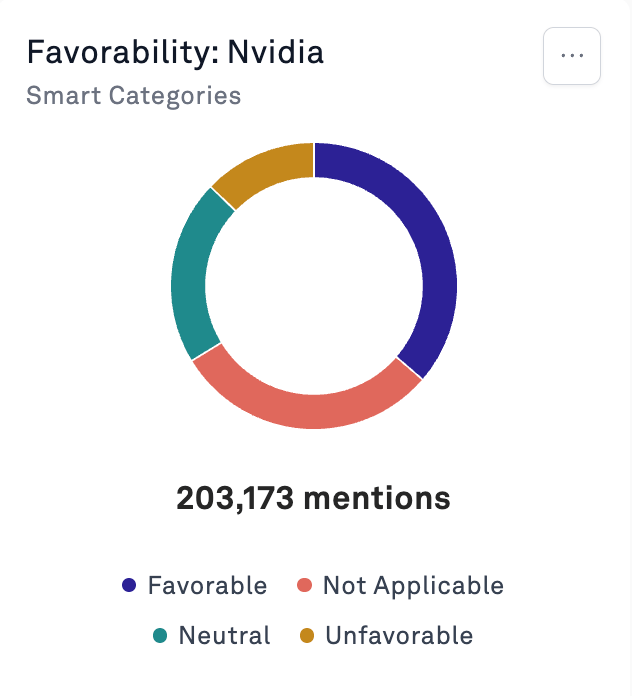
Filters
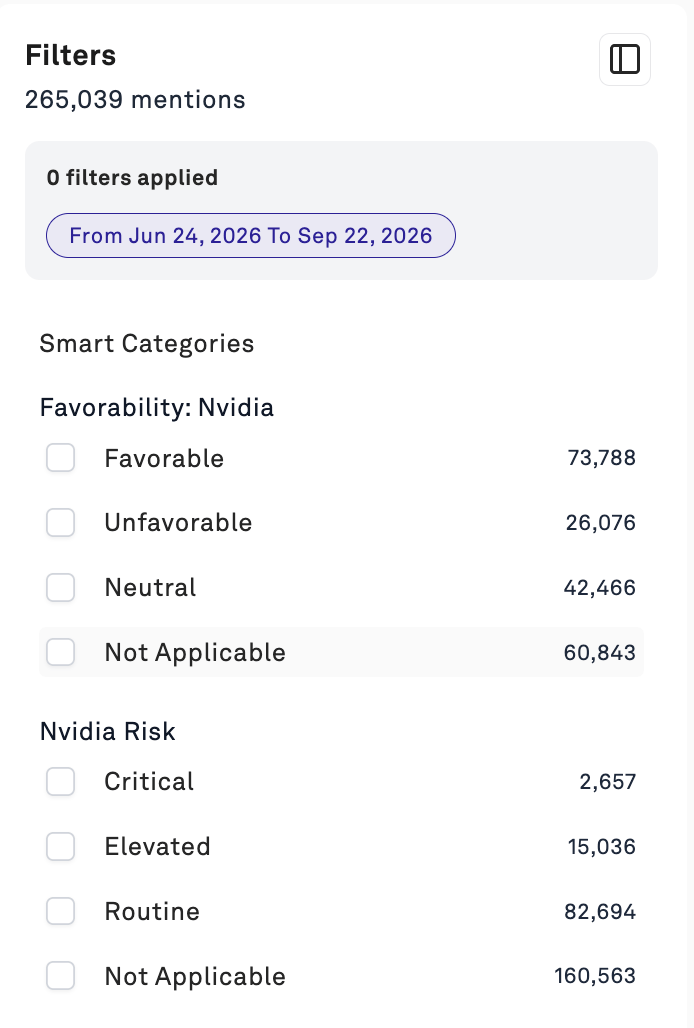
Every category appears in the filter panel with live counts per option, so you can scope the entire workspace to one segment, or combine categories to intersect them. Filtering toCritical plus Unfavorable gets you a very short, very useful list.
Volume Over Time
Open the chart’s ⋯ menu → Change Group By Metric and select a Smart Category to break volume out by your own labels over time.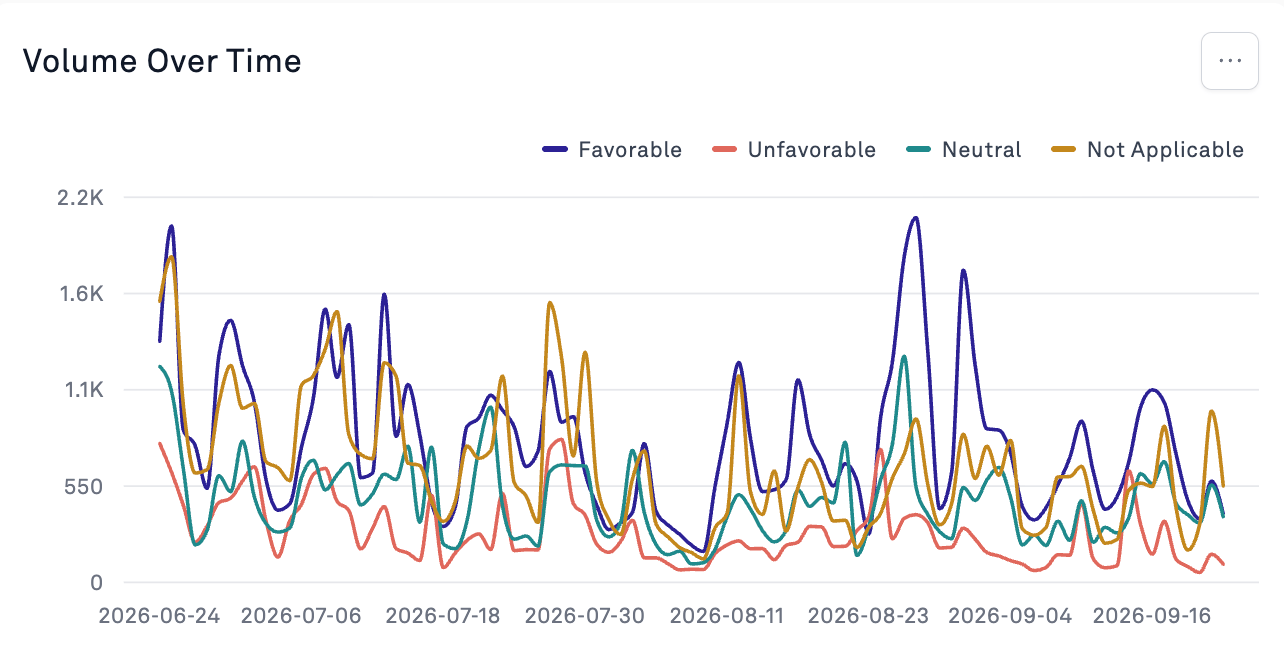
Summaries, reports, and exports
Categories feed AI-generated summaries, so filtering to a category and generating a summary gives you a narrative read of just that segment. Category values also export with your mentions for analysis elsewhere, see Exporting Data.Example use cases
Risk and crisis triage
Risk and crisis triage
Severity tiers (
Critical, Elevated, Routine) so crisis teams work a ranked queue instead of a raw volume feed. Pairs naturally with alerting, since you only want to be paged on the top tier.Cutting noise from a broad brand term
Cutting noise from a broad brand term
A relevance category is often the highest-value thing a team builds first. If your brand name is a common word, everything downstream (sentiment, volume trends, reporting) is wrong until you separate real mentions from coincidental ones.
Nuanced favorability
Nuanced favorability
Generic sentiment misreads framing, sarcasm, and comparison. A favorability category tuned to your brand and your industry’s language gives you a number you can actually take to an executive.
CX complaint routing
CX complaint routing
Classify mentions by complaint type (shipping, product defect, billing, support experience) and route each segment to the team that owns it. This turns social listening into an operational input rather than a monthly report.
Audience segmentation
Audience segmentation
With Author Data enabled, build a category that separates journalists from customers from employees, then filter any other analysis by audience. How reporters talk about you and how buyers talk about you are different questions with different answers.
Campaign and message pull-through
Campaign and message pull-through
Classify whether a mention contains your campaign’s core message. Trend it over the campaign window and you have a measurable answer to whether the message actually landed.
Logo and visual brand tracking
Logo and visual brand tracking
With Mention Image enabled, detect your logo in organic and partner content that never names you in text, invisible to keyword monitoring. See Author and Image Smart Categories.
Regulatory and policy monitoring
Regulatory and policy monitoring
Classify mentions by policy area or regulatory stage so public affairs teams can track the issues they own without reading everything.
FAQs
How many Smart Categories can I have?
How many Smart Categories can I have?
Your category allowance is defined in your contract and varies by customer. The number next to the Smart Categories heading in Settings shows how many you currently have. To check your limit or discuss increasing it, contact your Customer Success Manager or support@peakmetrics.com.Because the allowance is finite, it’s worth retiring categories you’ve stopped using rather than letting them accumulate.
Can a mention have more than one label in the same category?
Can a mention have more than one label in the same category?
No. Each mention gets exactly one option per category. If you need overlapping classification, build separate categories and combine them as filters.
Does creating a category classify my existing mentions?
Does creating a category classify my existing mentions?
Yes. Categories are backfilled across existing workspace content as well as applied to new mentions going forward.
Can one category run across multiple workspaces?
Can one category run across multiple workspaces?
Yes. Select multiple workspaces when configuring it, useful for applying a consistent standard across brands, regions, or clients.
Why did a specific mention get labeled the way it did?
Why did a specific mention get labeled the way it did?
Classification is based on the datasets you enabled and the logic in your prompt. If a label looks wrong, check whether the relevant signal was actually available. A category reasoning about images will behave differently on a text-only mention.
Can I backfill a smart category more than 90 days?
Can I backfill a smart category more than 90 days?
Yes. If you’d like a backfill extesnion on your smart categories, send a message to your CX manager or email support@peakmetrics.com.
Related reading
Creating a Smart Category
Step-by-step setup, prompt writing, and previewing.
Smart Categories Workflow Guide
A library of ready-to-deploy prompts across common use cases.
Author and Image Smart Categories
Classifying on visual content and author-level signals.
AI Perceptions
Smart Categories applied to how LLMs describe your brand.