- Track keywords over Twitter Lists that already exist
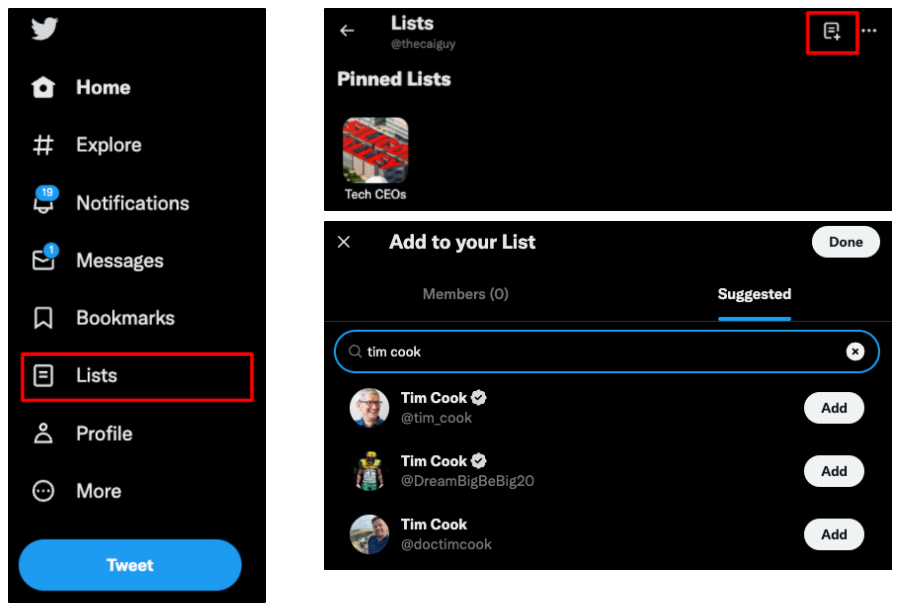
- Curate your own Twitter Lists.
Set Up an Workspace using a pre-existing Twitter List
1. First, you’ll need to find your list ID. To find this, navigate to the Twitter list you wish to use and find the list URL. The Twitter list URL has the format:https://twitter.com/i/lists/[LIST_ID]
 You will use this list ID to set up your alert query.
2. Under a PeakMetrics advanced search query constructor, use the twitter_list: “[list id]” syntax to find Tweets associated with your Twitter list:
You will use this list ID to set up your alert query.
2. Under a PeakMetrics advanced search query constructor, use the twitter_list: “[list id]” syntax to find Tweets associated with your Twitter list:
 3. Ensure that you have the X (Twitter) button checked under “Content Filters”
Note: This Twitter list syntax will nottranslate to alerts set for other platforms.
3. Ensure that you have the X (Twitter) button checked under “Content Filters”
Note: This Twitter list syntax will nottranslate to alerts set for other platforms.
Example Alerts
Here are a few example alert queries that demonstrate different ways to generate results from Twitter lists. Get all tweets:-
From a specified Twitter list:

-
From one or another Twitter list:

-
That appear on both Twitter lists:

-
From the specified Twitter list that contain the text “climate change”:

Curating your own Twitter Lists
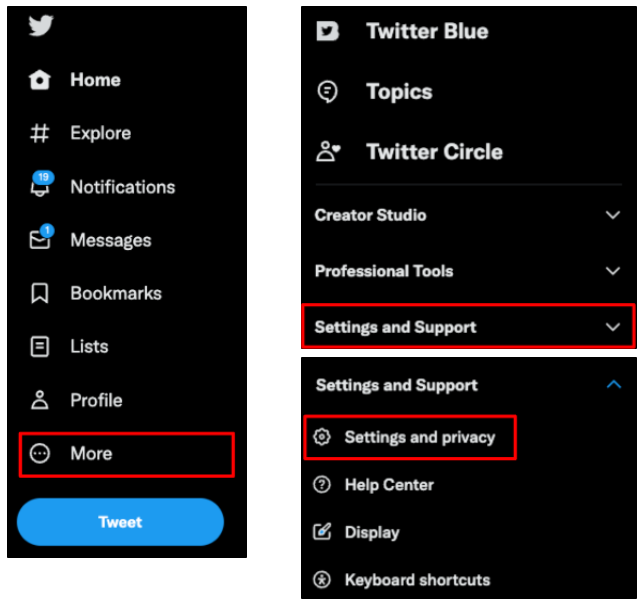
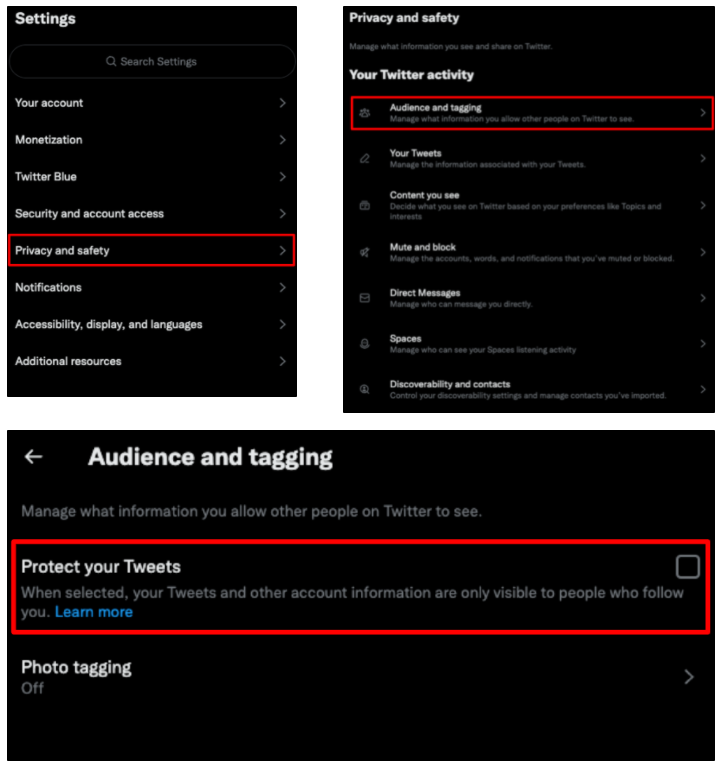
Firstly, PeakMetrics must be able to access your personal Twitter Lists, so check that your Tweets are not protected (i.e. only visible to your followers). Check this setting by clicking More > Settings and Support > Settings and Privacy > Privacy and Safety > Audience and Tagging - the Protect your Tweets box should be unchecked.