

Let’s get started
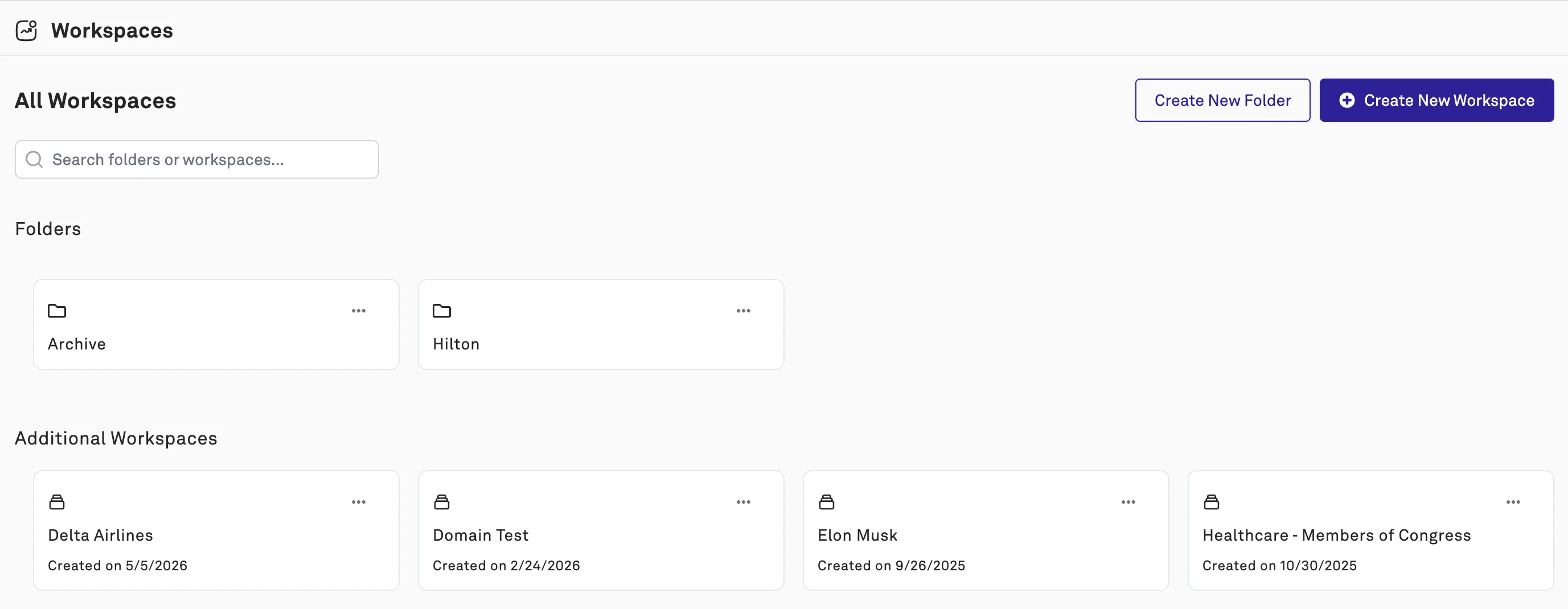
Navigate to the Product by logging into dashboard.peakmetrics.com. You can access your workspaces through the left-hand navigation bar.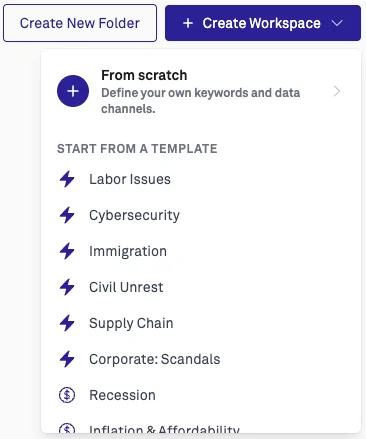
Create your Query
Click the ”+” button on the left-hand menu of the application. You will be prompted to add the title of your workspace in the box that reads “What would you like to call this Workspace…”.
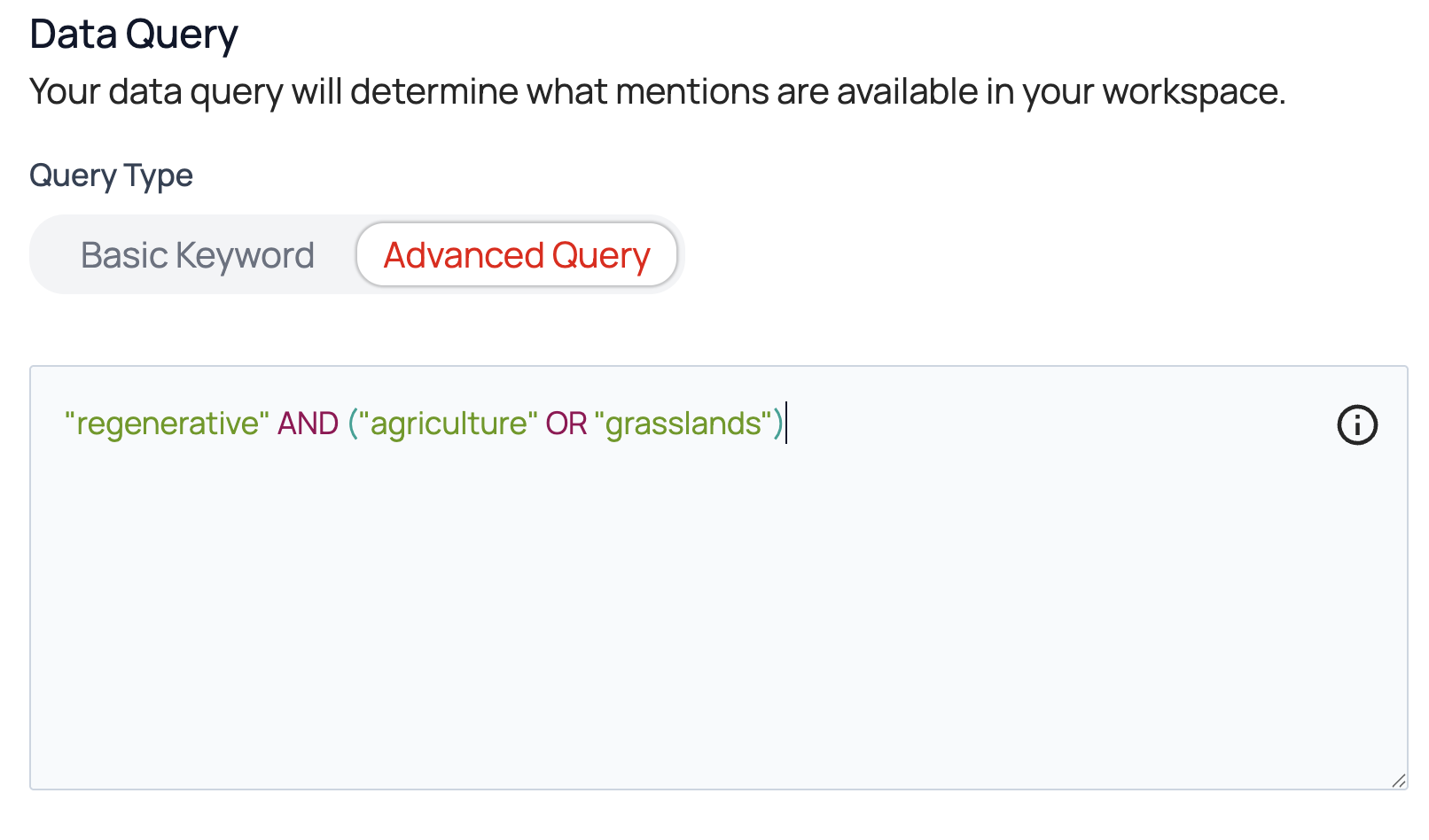
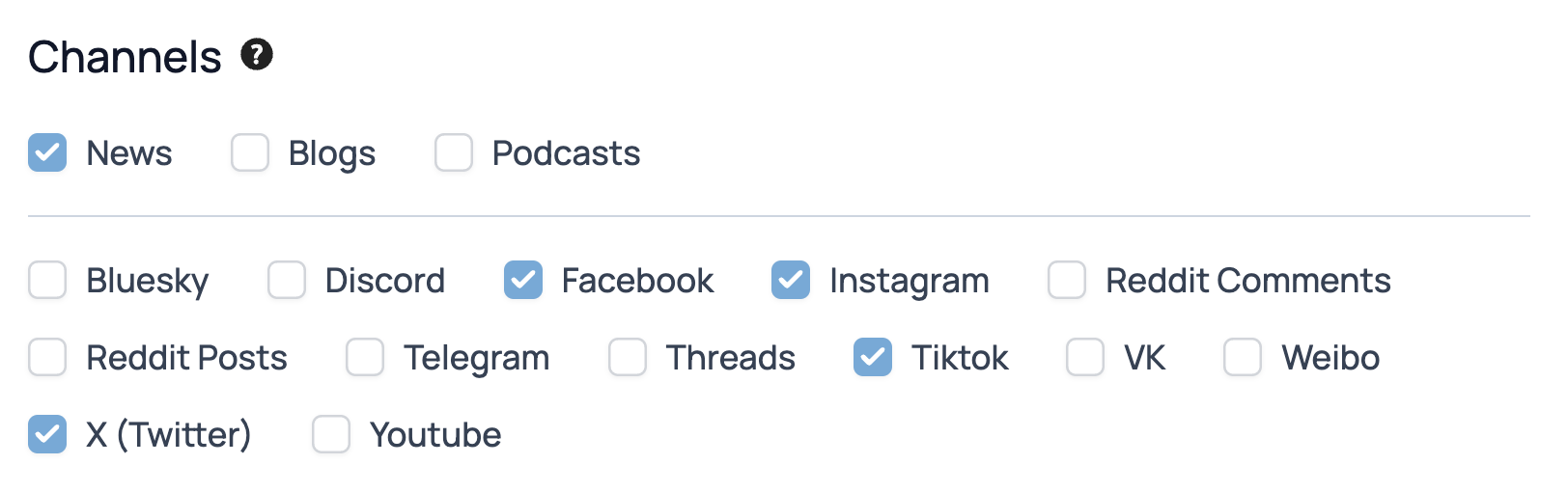 You can select the type of search you wish to run, you have two options to run searches.
- Basic Search: Enter keywords or phrases into the input boxes (Include all, Include some, and Exclude). Our system will then create the search for you. This option is recommended for simple searches or for new users of the platform unfamiliar with boolean searching.
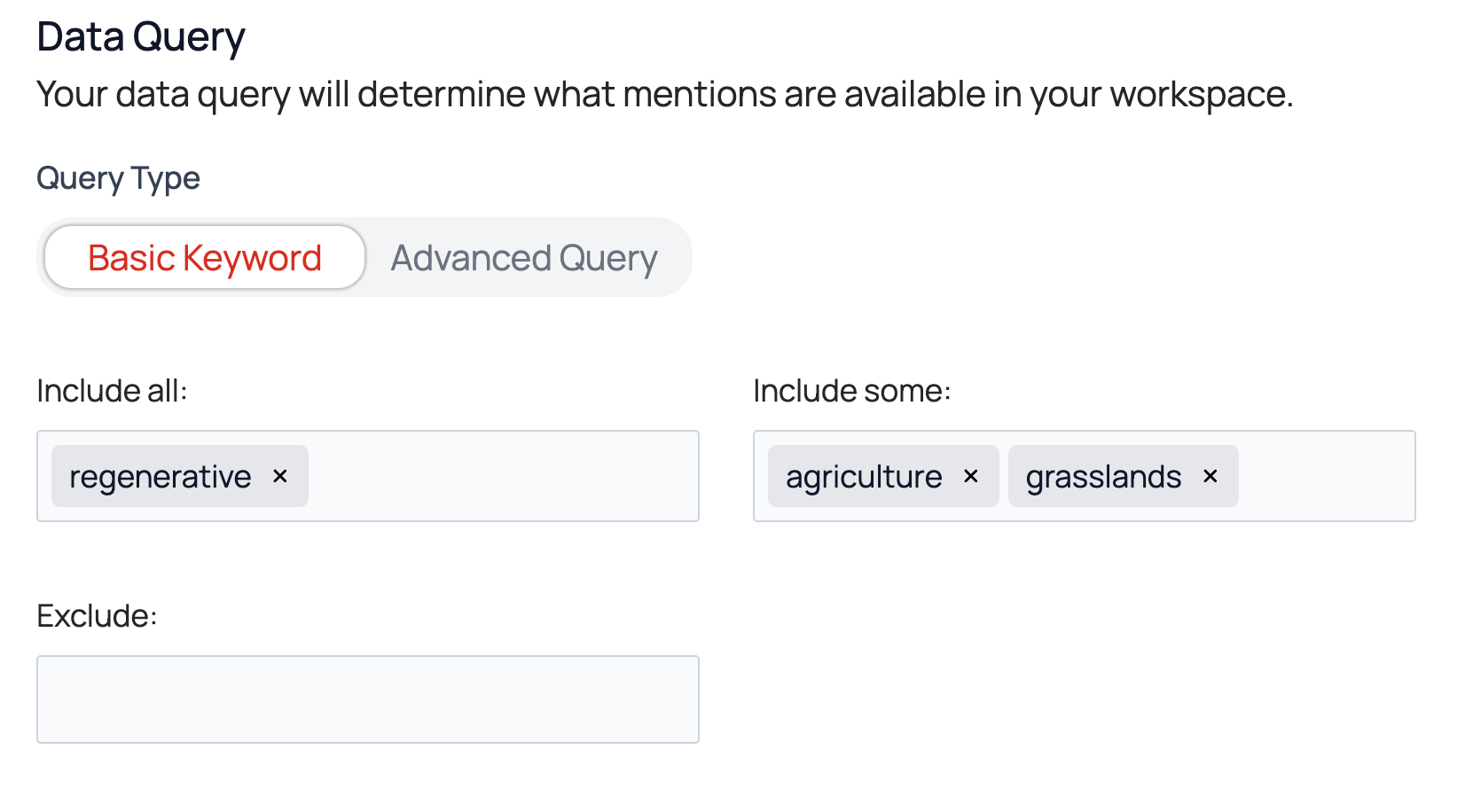
- Include all will search for mentions of every word or phrase entered.
- Include some will search for mentions that include at least one, but not necessarily all of the entered items.
- Exclude will exclude mentions of the entered words or phrases.
- Query Search: Create a Boolean query using AND, OR, NOT, and many other operators for more precise search results. (see our creating boolean queries guide, and our Advanced guide to Boolean Searches).
Exploring Your Results
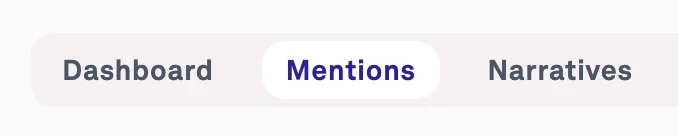
Within your workspace, you now have multiple ways to view your new content.

Now that you’re familiar with the mechanics of building a workspace using boolean queries, you may be wondering how to translate your particular use case into the PeakMetrics platform. Check out this workflow guide! Need more help? Reach out to us at support@peakmetrics.com if you’d like some assistance with setting up or refining your alerts to capture high quality mentions!